It is very
easy work to pilot mathematical graphs with 3DMath
Explorer. Two basic tool use for piloting.They are
Curve Explorer and Pilot Windows/Screen.
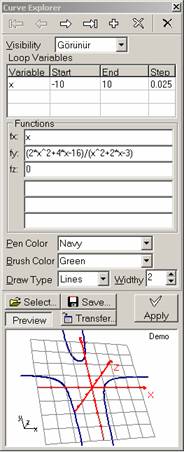
Curve Explorer is a tool that lets you see and
change all properties of curves of active graph screen .
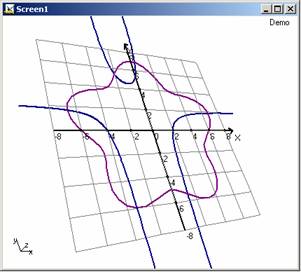
On the other hand Pilot Screen
is a window
which opens to space that mathematical curves get life or
it is projection of 3D vision that formed in this space and
reflected on to 2D computer screen.
Pilot
Screens with their
modifiable properties like curves that draws in them
gives users ability to change all properties of it. You
can change display properties of all pilot elements that
exist in pilot screen. You can change pen and brush
color of axis’s and grids, or change perspective and
fogging effect on and off. You can also change fogging
density and horizon point distance of perspective or
open four view screen to see front, right, top and
perspective view of the graph in the same screen. You
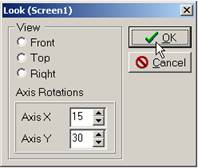
can rotate graph over x and y axis’s, and zoom the graph
to get any size of it.
With
Curve Explorer, you can move over curves that
exist in Pilot Screen one by one, and change their
properties. You can add a new curve or delete existed
curves. You can add them to template curves or transfer
them to another pilot screen. If you want to quickly
define e new curve, you can select a template curve or
transfer a curve from an other pilot screen. But do not
forget, you have to press Apply button to apply
any changes on to the pilot screen.
5.
Other Forms and Tools
of 3DMath Explorer:
5.1.Template
Curve Selection or Template Curve Entry
The
easiest method to enter e new curve into a pilot screen
with curve explorer is selecting a template curve from
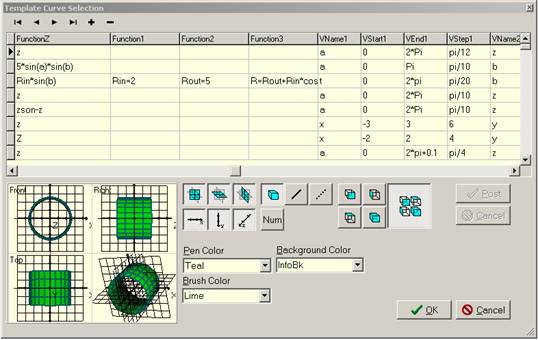
template curves by using Template Curve Selection
form that opens with Select button on the Curve
Explorer. In this form, you can select a template curve
by double click on the grit or pressing OK button.
You
can see active template curve in preview screen. You can
easily change properties of this screen with aid of
buttons and other subjects
.
In
Template Curve Selection form you can enter a new
template curve or change/delete an existed template
curve too. Any change or a new template curve entry
actives with Post button.
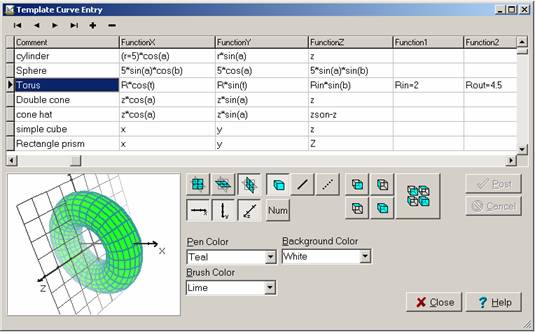
When
the form opens from File Menu as Template
Curve Entry to enter new curves into template
curves file, its appearance changes a little.
Close and Help buttons take over by
OK and Cancel buttons and colors of the
grit and many others subjects become white color.
This
form like Pilot Screens opens as a child form of main
form. So the treatments such as minimize, maximize
horizontal/vertical tile that applies to Pilot Screens
are also valid for it.
5.2.All Properties Form
With
3DMath Explorer, we pilot graphs in an object
driven space. All properties of this space can be
change with All Properties Form. This form opens
by selecting All Properties in Display
Menu, or pressing button on Standard Toolbar, or by All Properties
command in the menu that opens with right mouse click on
Pilot Screen. But the easiest way to open this form is
double click on Pilot Screen and the form pops up on to
computer screen.
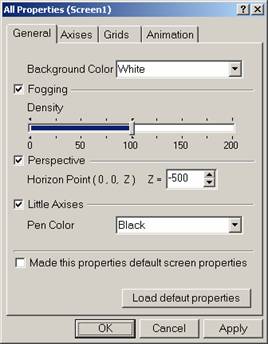
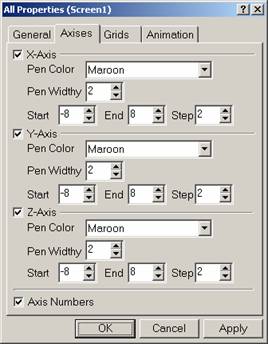
In this form, properties of Pilot
Screen are grouped in four division.
In General
Tab, background color, fogging and its density,
perspective and horizon point of perspective, little
axis’s visibility and its color can be change and all
properties in this form can be made default screen
properties, or default properties that set before can be
load.
In Axis’s
and Grids Tabs, display
properties of axis and grid plot elements can be change.
Axis numbers visibility can be change on and off or
Grids can be cover with polygons.
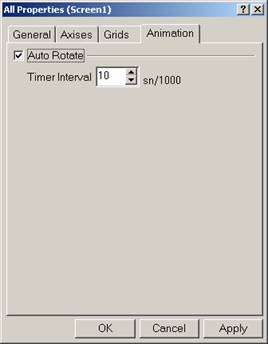
In Animation Tab pilot can be
animate by open Auto Rotate
property and Timer Interval of Auto Rotation can be
select.
5.3.Toolbars
3DMath
Explorer, has two toolbars named as View Toolbar and Standard Toolbar. By using
toolbars, user almost can do every thing without going
up to any menu.
Visibility of toolbars can change
with Toolbars submenu in View Menu or with menu that
opens by right mouse click on an empty space by side of
them.
Except these two toolbars, a third
bar exists in the program. This is Status Bar and it displays
short information about operations to guide users. But
you can hide this bar to get more vision space on your
computer screen. To do this go View Menu and remove the thick
before Status Bar
command.
The visibilities of this bars save
to an ini file as view properties of program. Program
read and apply this properties next time it opens.
In Animation Tab pilot can be
animate by open Auto Rotate
property and Timer Interval of Auto Rotation can be
select.
5.3.1.View Toolbar
Many properties of piloting screen
can be change directly by using View Toolbar that you see in
the picture below.
Now let’s take buttons and their
tasks in order. The first six buttons change visibility
of XY, XZ, YZ grids and x, y, z axis’s. The Num button changes axis’
numbers visibility. Next three buttons change draw types
of all curves to polygons, lines and points at the same
time. Next four buttons open or close fogging,
perspective, Four View and Auto Rotate properties of
pilot screen. The next four buttons that comes after
this buttons set front, right, left and perspective view
of graph. When you set the button with hand picture
down, you can carry center of graph with mouse. On the
other hand when you set the next button down you rotate
the graph over x and y axis’ with mouse. The two buttons
that comes next zoom the graph to twice its current size
or zoom the graph to half its current size. To zoom the
graph an exact size in numbers, all you have to write it
down the next area in this toolbar or select a value
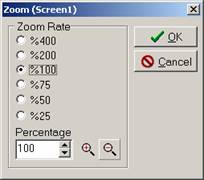
from its drop down list. You can open Zoom form by
double click in this area and select a zoom size by
using this form too
This form opens with Custom in Zoom Menu or by double
click on zoom combo box in view toolbar or by Zoom command in the menu
that opens with right mouse click on Pilot
Screen
5.3.2.Standard Toolbar
Many buttons in Standard Toolbar almost exist
all applications as a standard. So we don’t need to
mention all about them. So we take only some of them,
and tell their tasks.
button opens a
new pilot window/screen that has only default
piloting elements that wants to visible.
button opens
files with ’.tec’ extension to show and work on in a new
graphing window/screen.
button uses to
save graph in active window as technical file format
(with ’.tec’ extension) or the simple picture format
file (with ‘.bmp’ extension).
button prints
out graph in active window.
button copies
the graph in active window as a bitmap picture and puts
it on the clipboard so that you can paste this picture
to any word or picture editing program.
button shows
or hides Curved Explorer
tool window.
button shows
or hides Operator Select
tool window
button shows
or hides View Toolbar.
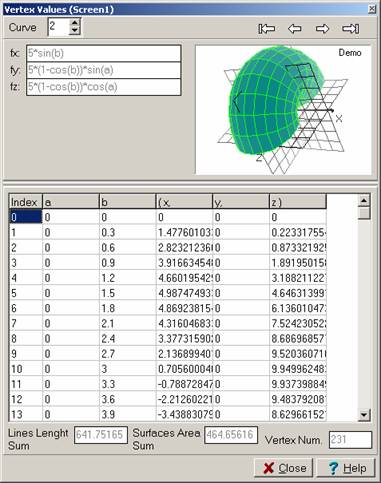
button opens
Vertex Values form to see
coordinate values of vertexes that used to draw graph in
active window.
button opens
All Properties form to
change properties of active windows.
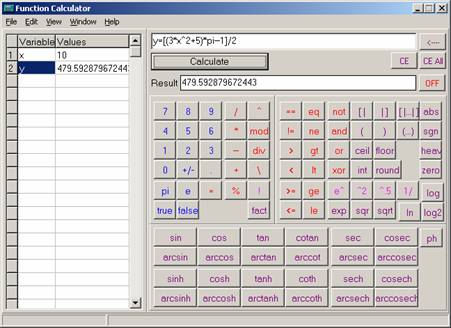
button opens a
simple calculator program named Function Calculator to
calculate functions.
5.4.Operator Select Tool
Window
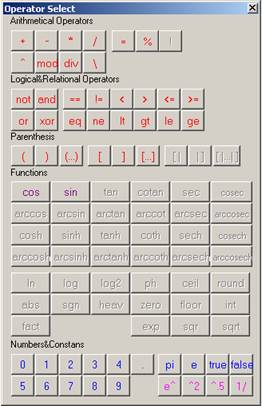
Now let’s mention about the two
form that named above. First of them is Operator Select Tool Window,
and it is a tool that make easy to enter the
functions that given by users as parameters of curves.
With help of this tool, operators, parenthesis,
functions, numbers and constants can be entered more
quickly.